
JetBrains DataGrip
You can connect to a Beacon data lakehouse from JetBrains DataGrip using the Arrow Flight SQL JDBC driver. This gives you a full SQL interface — browse tables, run queries, and explore your data directly from the IDE.
Prerequisites
- DataGrip installed
- A running Beacon instance with Arrow Flight SQL enabled (enabled by default)
- Port
32011reachable from your machine (see Docker note below)
Step 1 — Download the Arrow Flight SQL JDBC driver
Download the driver from:
- JetBrains JDBC Drivers page — search for "Apache Arrow Flight" Click on the versions (18.3.0 or later) to download a zip file containing the JAR. Unzip the downloaded file and locate the JAR (e.g.
flight-sql-jdbc-driver-18.3.0.jar).
Step 2 — Add the driver to DataGrip
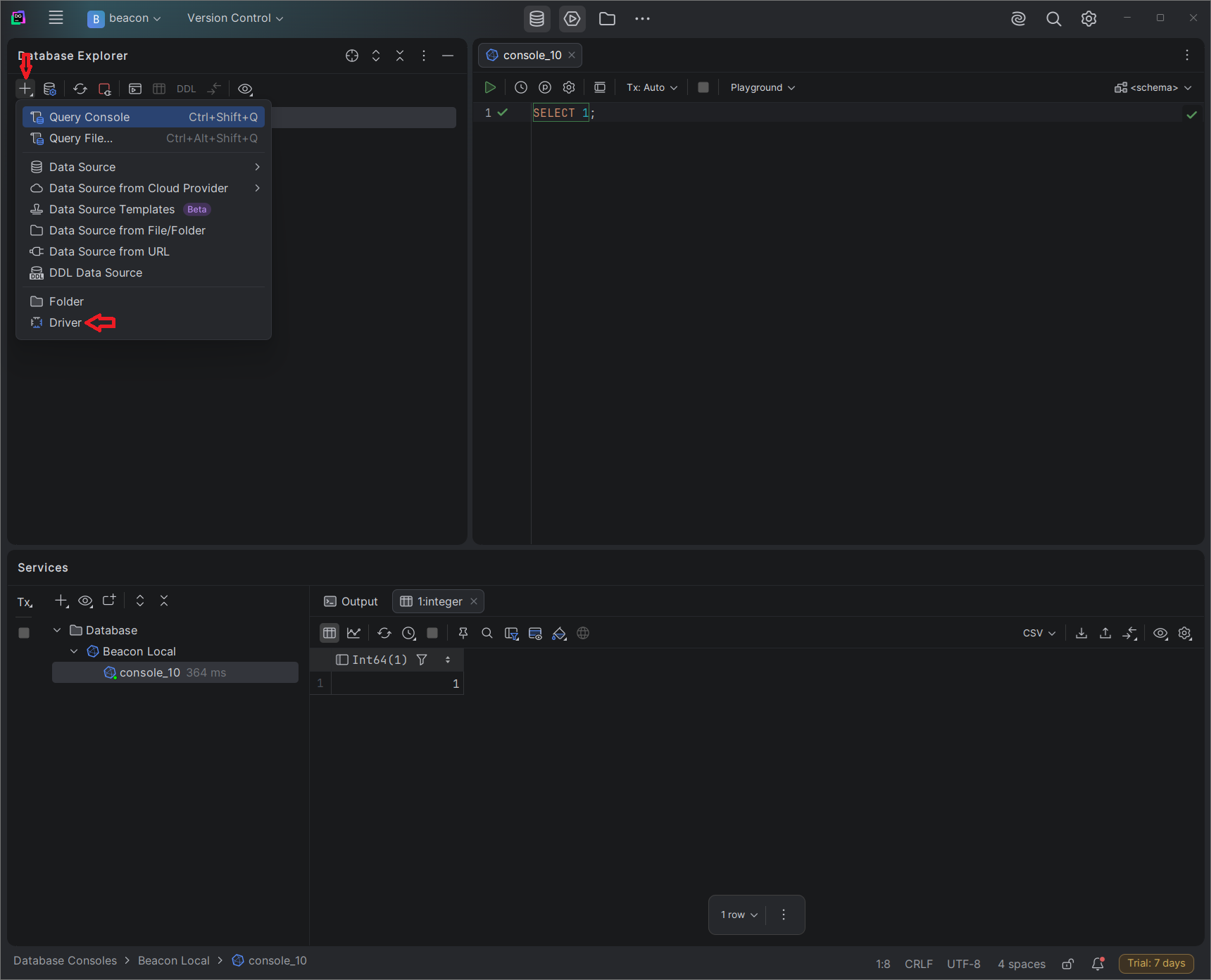
- Open Database Explorer → New → Driver.
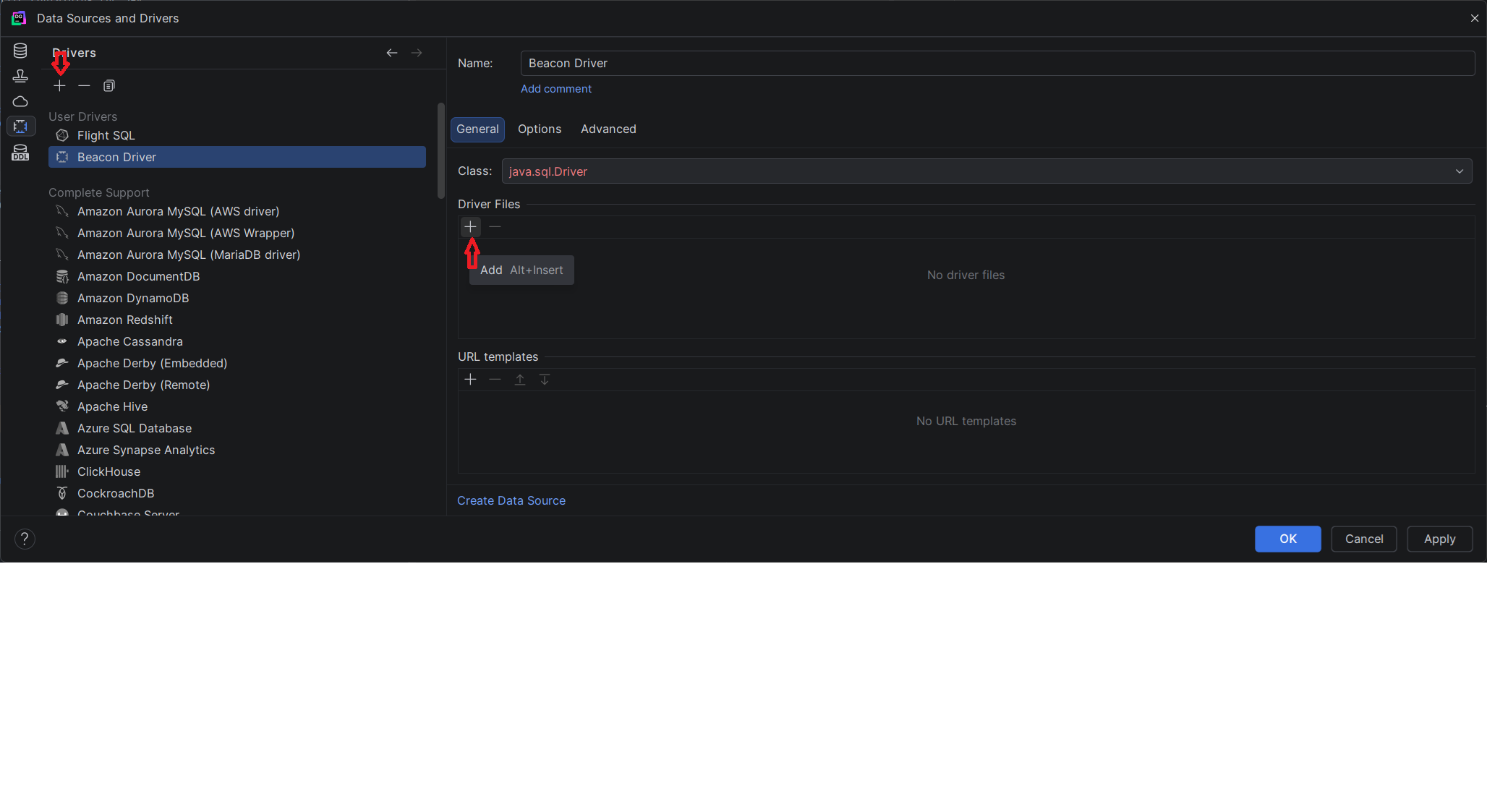
- Click + to create a new driver. Give it a name (e.g. Beacon Driver). Add driver files (the JAR you downloaded in Step 1) and set the driver class to
org.apache.arrow.driver.jdbc.ArrowFlightJdbcDriver. Save the driver. - Under Driver Files, click + → Custom JARs… and select the JAR you downloaded (it is contained within the downloaded zip file).
- Set Class to
org.apache.arrow.driver.jdbc.ArrowFlightJdbcDriver.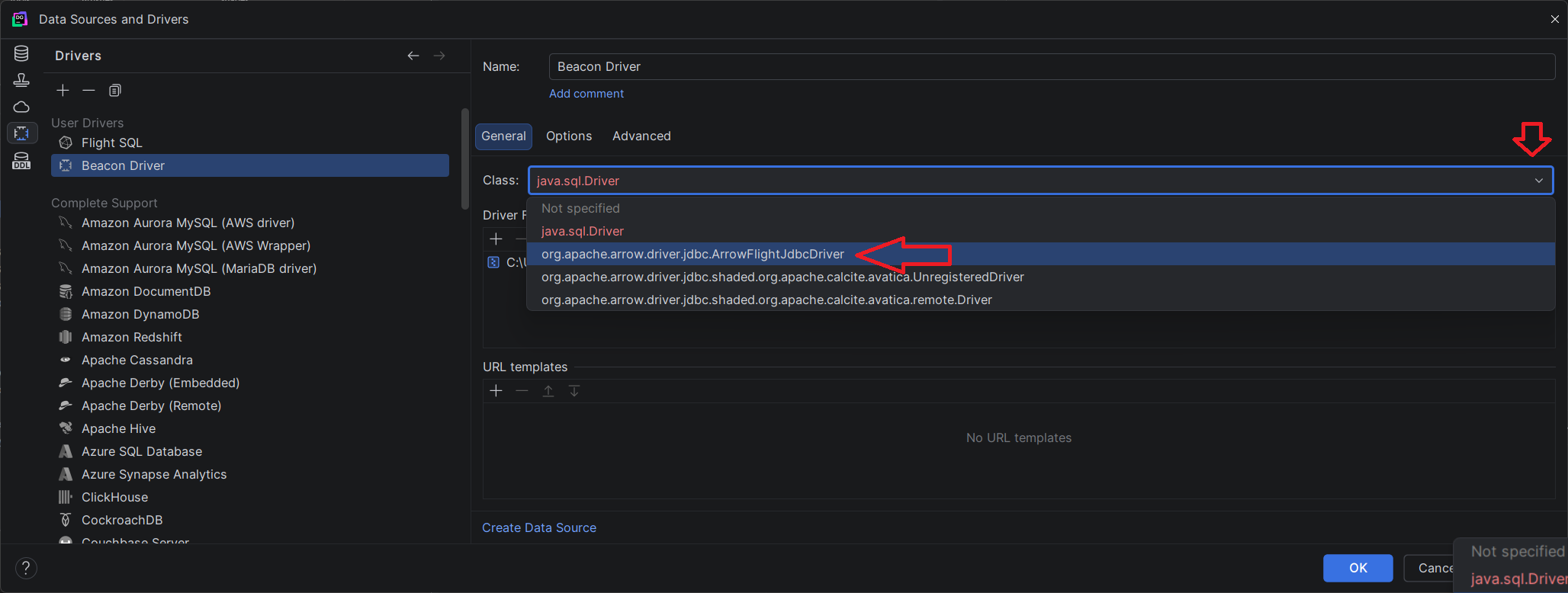
- Click OK to save the driver.
Step 3 — Create a data source
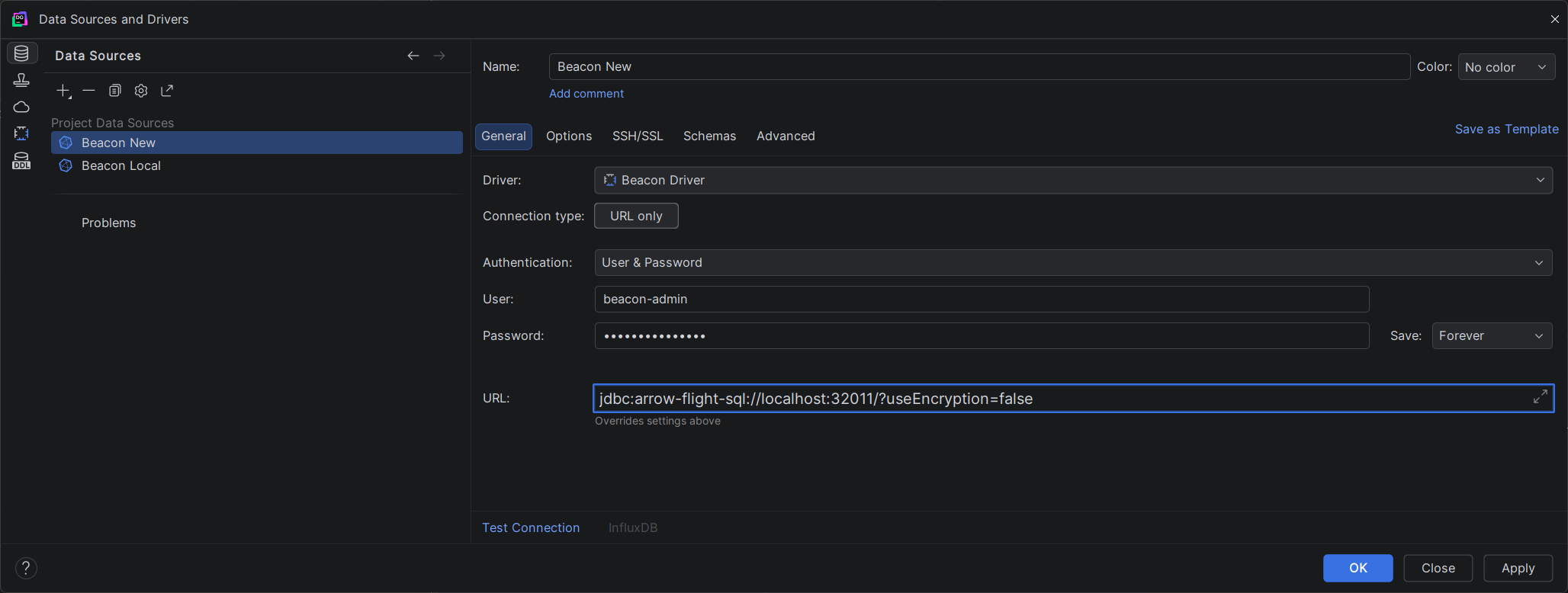
- Open Database Explorer → New → Data Source -> YOUR_DRIVER_NAME.
- Click + → select the YOUR_DRIVER_NAME driver.
- Fill in the connection details:
| Field | Value |
|---|---|
| User | Your Beacon admin username (BEACON_ADMIN_USERNAME) |
| Password | Your Beacon admin password (BEACON_ADMIN_PASSWORD) |
| URL | jdbc:arrow-flight-sql://localhost:32011?useEncryption=false |
INFO
If your Beacon instance is served over TLS, change useEncryption=false to useEncryption=true in the JDBC URL.
- Click Test Connection to verify. You should see a Successful message.
- Click OK to save.
Expose the Flight SQL port
By default, Arrow Flight SQL listens on port 32011. When running Beacon via Docker Compose, make sure this port is published:
services:
    beacon:
        image: ghcr.io/maris-development/beacon:latest
        ports:
            - "5001:5001"   # HTTP API
            - "32011:32011" # Arrow Flight SQL  #
Querying your data
Once connected, DataGrip will introspect the available tables. You can then:
- Browse the schema tree in the Database panel
- Open a query console and run SQL against your datasets
-- List all available tables
SHOW TABLES;

-- Query a dataset
SELECT 1;

-- Query a dataset
SELECT * FROM read_netcdf(['my_dataset.nc'], ['TIME', 'DEPTH']) LIMIT 100;
TIP
Beacon tables are named after your dataset files or registered external table names. If you don't see tables immediately, right-click the data source and choose Refresh.
Configuration reference
The Arrow Flight SQL endpoint can be tuned with the following environment variables in your Beacon deployment:
| Variable | Default | Description |
|---|---|---|
BEACON_FLIGHT_SQL_ENABLE | true | Enable or disable the Flight SQL server |
BEACON_FLIGHT_SQL_HOST | 0.0.0.0 | IP address to listen on |
BEACON_FLIGHT_SQL_PORT | 32011 | Port for the Flight SQL gRPC server |
BEACON_FLIGHT_SQL_ALLOW_ANONYMOUS | false | Allow unauthenticated connections |
BEACON_FLIGHT_SQL_TOKEN_TTL_SECS | 3600 | Auth token lifetime in seconds |